




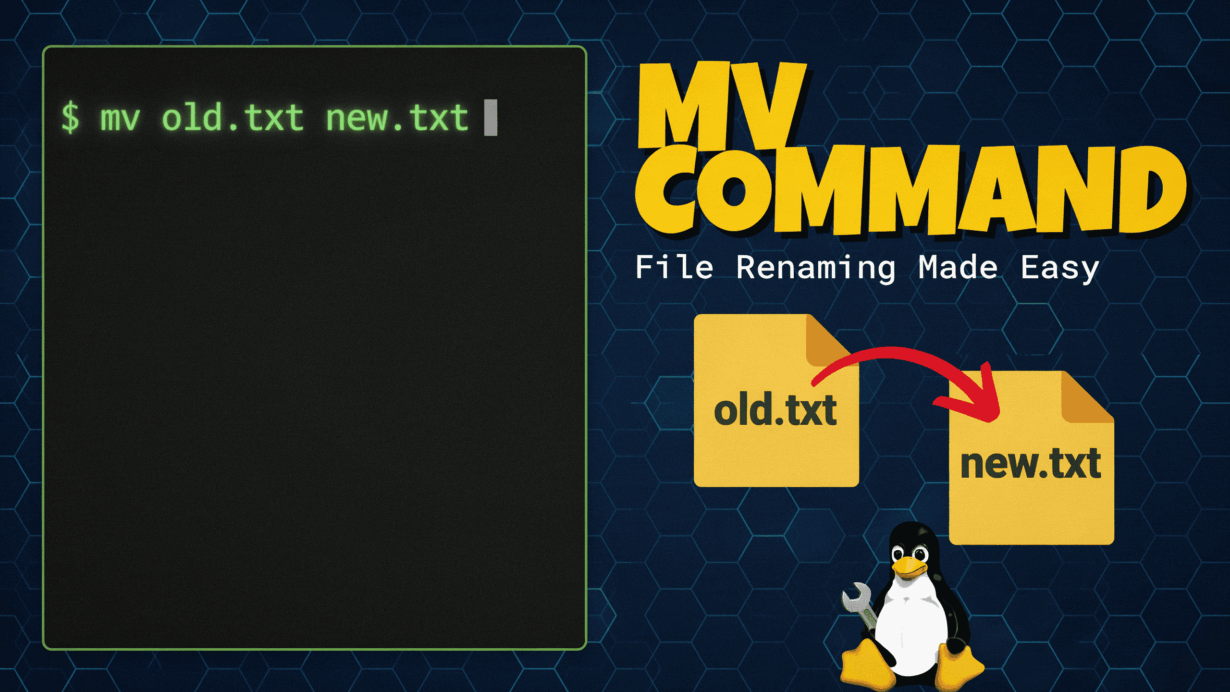
File renaming in Linux is the process of changing a files directory entry while preserving its underlying inode or stored data. In the most cases, the mv command updates the filename reference rather than moving file contents, making renaming a fast and the efficient operation for the Linux file management and server administration.
In this ultimate command-line guide, you’ll learn how to rename file Linux safely using both the traditional `mv` command and the more advanced `rename` command Linux administrators rely on for bulk operations. We will explore the technical reasons these commands work, when each tool is the right choice and how the Linux file systems handle filename changes behind the scenes.
Whether you are a beginner learning your first terminal rename file command and the system administrator building an automate server file renaming bash script, this guide will equip you with the knowledge needed to perform safe, efficient and professional-grade file renaming on Linux systems.

Standard Method is using the mv Command to Rename Files in Linux
The mv command is the most of common way to rename files in Linux. Unlike copying a file, mv typically updates the directory entry pointing to the file’s inode and making the rename process nearly instantaneous regardless of file size.
Basic Syntax and Usage :
mv [old_name] [new_name]Example:
mv report-draft.txt final-report.txtThis changes the filename while preserving the file’s data, permissions and inode information.
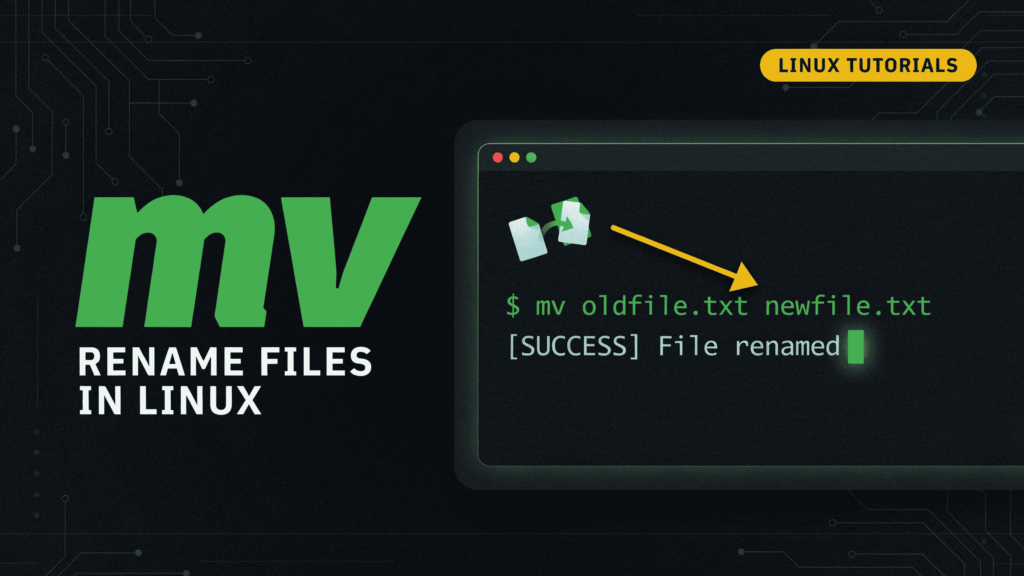
“Safety First” Approach: Using the -i Flag
Accidentally overwriting files is a common cause of data loss on the Linux systems. Professional administrators often use of interactive mode to add a confirmation step before replacing an existing file.
mv -i report.txt final-report.txtIf the destination already exists, Linux prompts:
mv: overwrite 'final-report.txt'?⚠️ Warning: When working on production servers, always use -i for manual renames. A single overwrite can destroy backups, configuration files or application data.
Pro Tip: Many sysadmins create a permanent alias:
alias mv='mv -i'This simple safeguard improves Linux file management, reduces human error and especially valuable before implementing an automate server file renaming bash script or larger the linux server file management automation tools.
“In server administration, the most dangerous tool is the one used without caution. As the old adage goes: ‘Measure twice, cut once.’ When automating file operations on production systems, a moment of verification is worth an hour of recovery.”
Understanding the mv (move) Command for File Renaming :
The mv (move) command is standard the Linux utility used to rename files and directories from the command line. When renaming within the same file system, the Linux typically updates the filename reference rather than moving the actual file data or making the operation extremely fast and resource efficient.
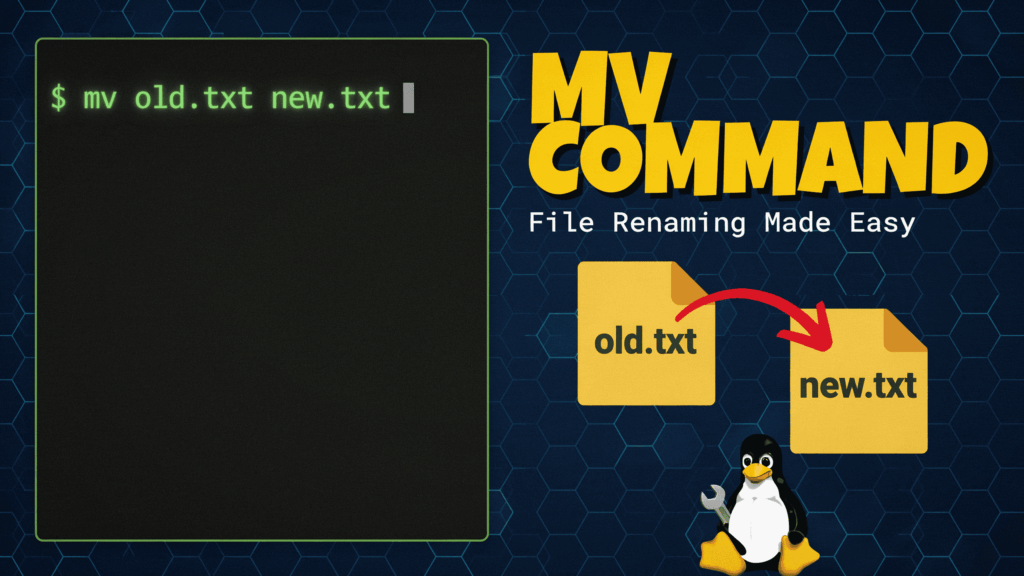
Syntax:
mv [old_name] [new_name]Example:
mv report-draft.txt final-report.txtThis command is rename the file from report-draft.txt to final-report.txt while preserving the file’s permissions, ownership and inode information.
| Component | Purpose |
Old name | Current file name |
New name | Desired file name |
Pro Tip: Always verify the filename before executing the command and especially depend on production servers. Small naming mistakes can disrupting the scripts, backups and also automated workflows. For teams implementing the Linux server file management automation tools and an automate server file renaming bash the script, consistent naming conventions are critical for maintaining the operational efficiency.
The Advanced Bulk File Renaming and Automating the Linux File Management
Manual renaming works for a few files, but servers often require hundreds of files to be updated the consistently. Automating these tasks improves accuracy and saves valuable of administration time.
“Efficiency is not just about doing things faster; it is about building systems that require less intervention. Automation is the bridge between a struggling server and a scalable infrastructure.”
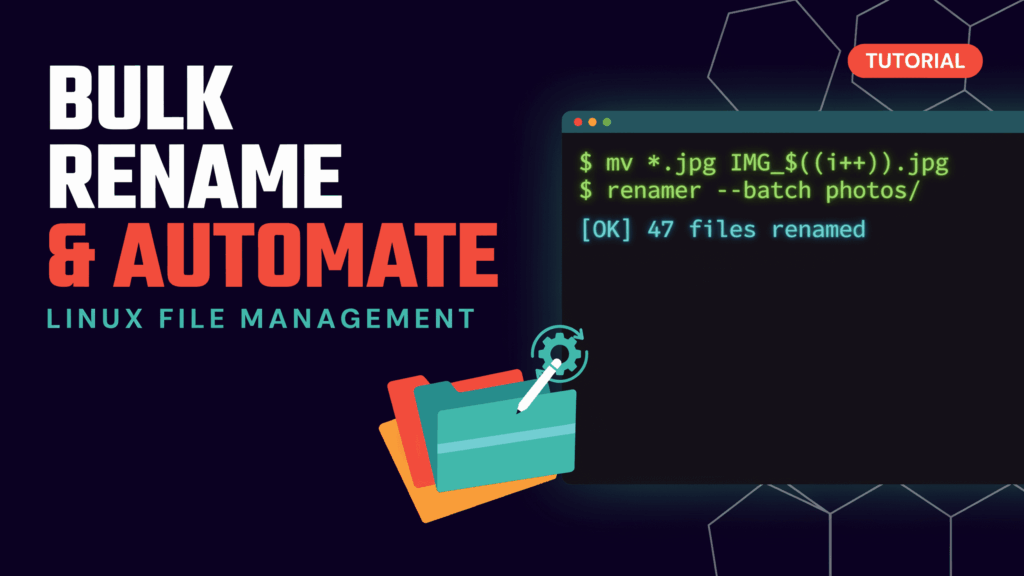
Automating the Server File Renaming with Bash Scripts :
the simple Bash loop can rename multiple files at once:
for file in *.log; do
  mv "$file" "archived-$file"
done
This automation server file renaming bash the script approach is ideal for logs, backups and scheduled maintenance tasks
Using the rename Command for Regex-Based Changes :
For large-scale renaming, use the `rename` command utility:
rename 's/\.txt$/.md/' *.txtThis instantly converts all .txt files to .md.
Pro Tip: The rename command are supports Perl regular expressions, making it a powerful solution for the complex naming patterns and the improving of bulk rename files the Linux server performance across a large datasets.
Troubleshooting Errors or Scaling the Linux File Management
When renaming the files, the most common errors is “No such file or directory” and “Permission denied”. These typically occur due to incorrect file paths, misspelled the filenames or insufficient user permissions. Before troubleshooting, verify the file exists with ls -l and confirm you have write access to the directory.
Scaling File Management for Growing Servers :
As a file volumes increase, manual management becomes the inefficient. Modern the linux server file management automation tools, Bash scripts or scheduled tasks help to maintain consistency while reducing human error.

Pro Tip: Always test bulk renaming operations on a small file set before the running them in production.
While automation is powerful server, high-performance such as Proxmox clusters and enterprise hosting platforms often require dedicated managed infrastructure to ensure the uptime, reliability and long-term scalability.
The Common File is Renaming Errors: Permission Denied and Path Issues
Two are most of the common errors when renaming the files in the Linux are “Permission denied” and “No such a file or directory.” In most of the cases, these issues are caused by insufficient permissions, incorrect file paths and simple typing mistakes.
| Error | Cause | Solution |
|---|
| Permission denied | User lacks write permissions | Check ownership with ls -l or use sudo when appropriate |
| No such file or directory | Incorrect filename or path | Verify the exact file location and spelling |
Before the troubleshooting complex issues, experienced of sysadmins always confirm the file exists and check directory permissions. A quick review of file ownership often resolves the problem faster than repeatedly running commands.
Pro Tip: When working with the system files and avoid assuming of permissions. Verify the access first to prevent errors and maintain the safe of Linux file management practices.
Scaling the Linux Infrastructure: Smart File Management for Growing the server
As servers grow, manual the file operations quickly become a bottleneck. Professional administrators rely on the scripts, scheduled jobs and the linux server file management automation tools to maintain of consistency, reduce human error and improve the operational efficiency.
Best Practices for the Scalable File Management:
Standardize file naming conventions, Automate repetitive tasks with the Bash scripts, Test bulk renaming operations before deployment, Maintain regular backups or change logs and Restrict permissions for critical directories.
While automation the scripts are highly effective, large-scale such as the Proxmox clusters, virtualization platforms and high-traffic hosting infrastructures often require dedicated to managed the hosting of solutions to maintain uptime and performance. As workloads increase, infrastructure reliability becomes just as important as automation itself.
Pro Tip: The best sysadmins automate routine tasks but also ensure the underlying server is optimized, monitored and built to scale.
“True mastery of Linux file management lies not in knowing every flag, but in understanding how to maintain the stability of the system while it grows. Infrastructure is the foundation of your digital success—treat it with the precision it demands.”
Frequently Asked Questions :
To help you master the Linux file renaming, automation and file management best practices, we’ve answered some of the most common questions system administrators, developers and server owners ask about managing files from the command line.
Whether you are renaming the single file with mv (move) or automating thousands of changes with scripts and regex-based tools, understanding the fundamentals of Linux file management can save time, reduce errors and improve server efficiency.
What is the difference between mv and rename in Linux?
The mv command is ideal for renaming individual files or directories, while the rename utility is designed for bulk operations. The rename command supports regular expressions, making it a better choice when you need to modify hundreds or thousands of filenames simultaneously.
How can I rename multiple files at once in Linux?
You can rename multiple files using a Bash script, a for loop, or the rename command. For large datasets, log files, and backups, automated renaming significantly reduces manual effort and improves consistency across Linux environments.
Why am I getting a “Permission Denied” error when renaming files?
This error usually occurs when your user account lacks write permissions for the file or directory. Use ls -l to check ownership and permissions. If necessary, administrators can use sudo to perform the operation with elevated privileges.
Can I undo a file rename in Linux?
Linux does not include a built-in undo feature for file renaming. If a file is renamed incorrectly, you must manually rename it back or restore it from a backup. This is why experienced administrators test bulk operations before applying them to production data.
What is the safest way to rename files in Linux?
Using the interactive mode of the mv command is considered the safest approach:
mv -i oldfile.txt newfile.txtThis prompts for confirmation before overwriting existing files and helps prevent accidental data loss.
How do I automate file renaming on a Linux server?
Most system administrators use Bash scripts, cron jobs, and automation workflows to handle recurring renaming tasks. Automating file management improves efficiency, especially on servers processing large volumes of logs, backups, and application-generated files.
Does renaming a file affect its contents?
No. In most Linux filesystems, renaming changes only the filename reference in the directory structure. The file’s inode, contents, permissions, and ownership remain unchanged.
What are the best Linux server file management automation tools?
Common tools include Bash scripting, cron scheduling, the rename utility, Ansible, and configuration management platforms. For larger infrastructures, combining automation tools with reliable cloud or dedicated hosting helps maintain performance and operational stability.
When should I use managed hosting instead of manual file management?
Manual file management works well for small environments, but growing infrastructures often require automation, monitoring, backups, and resource optimization. Organizations running virtualization platforms, Proxmox clusters, or business-critical applications frequently choose managed hosting solutions from providers like Owrbit to reduce administrative overhead and maintain high uptime.
Can I rename directories using the same commands?
Yes. The mv command works for both files and directories. For example:
mv old-directory new-directoryThis changes the directory name without affecting the files stored inside it.
How do professional Linux administrators handle large-scale file renaming?
Experienced sysadmins typically use automation scripts, regular expressions, change logging, and backup strategies before performing bulk operations. This approach minimizes risk and ensures consistent file management across production environments.
Discover more from Owrbit
Subscribe to get the latest posts sent to your email.