





You’re deploying something simple—pulling a Docker image, uploading a backup, or running a database job—when your terminal suddenly stops with:
No space left on deviceYour app fails, your task crashes, and everything grinds to a halt.
So you check the obvious thing:
df -hBut the output shows plenty of free disk space.
Now the confusion begins. You’re stuck in the frustrating situation many admins search for: no space left on device but df -h shows space. The server clearly has free gigabytes, yet Linux refuses to write anything.
Next you check directory usage:
du -sh *Still nothing unusual. This leads to another common mystery: linux disk full but du shows space.
When this happens, you’re usually facing a “ghost disk full” problem. The disk looks fine, but something deeper in the filesystem is blocking writes.
In most cases the cause is inode exhaustion or deleted files still held open by running processes. In this guide, we’ll quickly diagnose the issue and show the exact commands to fix it.

Why Your Server Says “Disk Full” When It Clearly Isn’t?
You already did the logical thing. You checked your storage.
df -hThe output shows gigabytes of free space, yet your server keeps crashing with write errors. Uploads fail, Docker pulls stop midway, and logs refuse to grow. This is the exact situation thousands of developers search for every day: no space left on device but df -h shows space.
Naturally you check directory usage next and discover another confusing result: linux disk full but du shows space.
At this point it feels like Linux is lying to you.

But it’s not.
This is a classic “ghost disk full” problem. Your disk isn’t actually full in terms of storage blocks. Instead, the filesystem has hit a hidden limit. In almost every case, the cause comes down to two specific issues: inode exhaustion or deleted files still being held open by running processes.
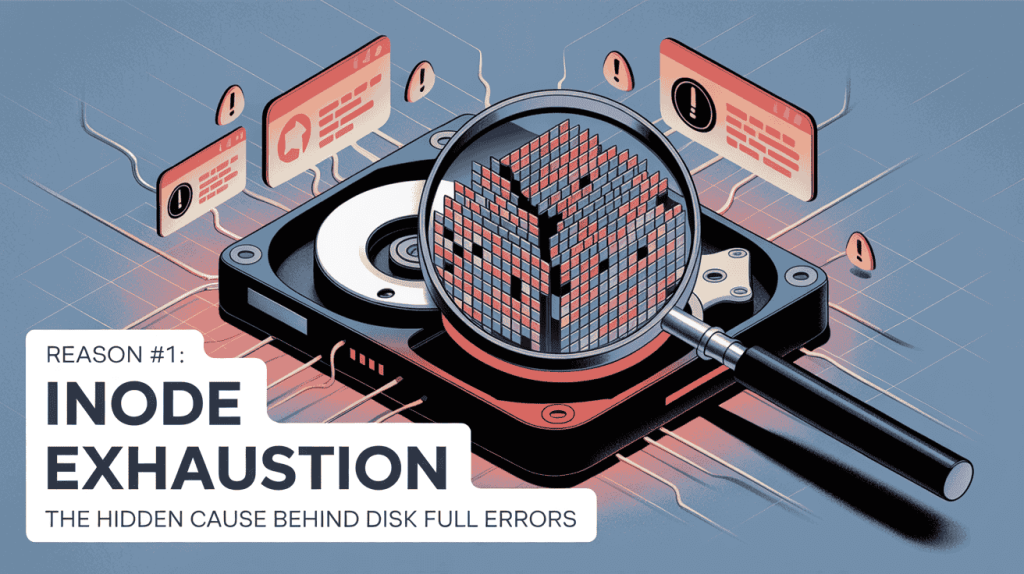
Reason #1: Inode Exhaustion — The Hidden Cause Behind “Disk Full” Errors
One of the most common reasons servers break with no space left on device but df -h shows space is something most people never check: inodes.
Linux filesystems don’t only track storage size. They also track the number of files that can exist on the disk. Each file uses one inode, which acts like a record describing that file.
Your disk isn’t actually full in terms of storage blocks. Instead, the Linux filesystem has hit a hidden, hardcoded limit. It is not running out of gigabytes; it is running out of file entries.
When the system runs out of inodes, Linux cannot create new files, even if you still have hundreds of gigabytes free. This is why many developers experience linux disk full but du shows space. The disk capacity is available, but the filesystem has run out of file entries.
Modern development tools are notorious for causing this. Applications like Docker, Node.js npm, caching systems, and log-heavy services can create millions of tiny files. These small files barely consume storage, but they rapidly consume inodes.
Once the inode limit is reached, the system starts throwing errors like no space left on device but df -h shows space, even though disk usage looks completely normal.
Step 1: Check Inode Usage
First, verify whether your server has run out of inodes.
Run this command:
df -iExample output might look like this:
Filesystem      Inodes   IUsed   IFree IUse%
/dev/sda1      6553600 6553600       0  100%
If the IUse% column shows 100%, your server has hit inode exhaustion. This is one of the most common causes behind no space left on device but df -h shows space and also explains why many admins encounter linux disk full but du shows space.
Step 2: Find the Directory Creating Millions of Files
Once you confirm inode exhaustion, the next step is identifying which directory is creating excessive files.
Run the following command:
find / -xdev -type f | cut -d "/" -f 2 | sort | uniq -c | sort -nThis command scans the filesystem and counts how many files exist in each top-level directory. The directories with the largest file counts usually contain the culprit.
Typical problem locations include:
- Docker container layers
- npm or Node.js cache folders
- temporary build files
- log directories
- mail queues
- application cache directories
These locations can silently generate millions of small files, leading to linux disk full but du shows space and repeated no space left on device but df -h shows space errors.
Step 3: Clean Up Safely
Once you identify the directory responsible for the excessive files, remove unnecessary data carefully.
Common cleanup examples include:
npm cache clean --forceCleaning Docker artifacts:
docker system prune -aRemoving old logs:
rm -rf /var/log/*.gzClearing temporary files:
rm -rf /tmp/*After cleanup, check inode usage again:
df -iIf inode usage drops significantly, the filesystem will start accepting new files again and the no space left on device but df -h shows space error should disappear.
Understanding inode exhaustion is critical for diagnosing strange filesystem issues. Many engineers spend hours debugging linux disk full but du shows space problems before realizing the real issue is running out of file entries rather than disk capacity.
In the next section, we’ll cover the second major cause of this problem: deleted files that are still being held open by running processes, another classic trigger behind no space left on device but df -h shows space.
Reason #2: Deleted Files Still Consuming Disk Space
Another extremely common reason behind no space left on device but df -h shows space is when a deleted file is still being used by a running process.
This usually happens with large log files.
For example, imagine your Nginx access log grows to several gigabytes. To free space, you delete the file manually. But the Nginx process is still running, and Linux keeps the file handle open in memory.
So even though the file is gone from the filesystem, the disk space is not actually released.
This is why many admins see linux disk full but du shows space. The file is invisible to normal disk usage tools, but the space is still reserved by the running application. This situation frequently triggers no space left on device but df -h shows space, especially on production servers running heavy logging workloads.

Step 1: Find Hidden Deleted Files with lsof
To detect these “ghost files”, you can use the lsof command. It lists open files that processes are still using.
Run:
lsof +L1This command searches for deleted files that are still being held open by active processes.
You might see output like:
nginx   1283 www-data  3w   REG   8,1  204857600  12345 /var/log/nginx/access.log (deleted)
node    2421 appuser   4w   REG   8,1  509857600  23456 /var/log/app.log (deleted)
This means the file has been removed, but the process is still writing to it in the background.
This invisible disk usage is one of the main causes of linux disk full but du shows space, and it commonly leads to no space left on device but df -h shows space errors that confuse even experienced sysadmins.
Step 2: Restart the Process to Reclaim Disk Space
Once you identify the process holding the deleted file, the fix is simple: restart the service so the file handle closes and the space is released.
For example, if Nginx is holding the file:
systemctl restart nginxIf the issue is coming from another service, restart that specific process instead.
After restarting the service, Linux will finally release the reserved blocks and the no space left on device but df -h shows space problem should disappear immediately.
You can verify the fix by checking disk usage again:
df -hIn many real-world cases, administrators discover that several gigabytes of space suddenly become available. This confirms that the issue was caused by hidden deleted files holding disk space, another major trigger behind linux disk full but du shows space errors.
Understanding this behavior is crucial for troubleshooting production servers. Without checking for open deleted files, admins can spend hours searching for disk usage that doesn’t appear anywhere in the filesystem, while the system keeps reporting no space left on device but df -h shows space.
Why Cheap VPS Hosting Often Causes These “Ghost Disk Full” Errors?
If you keep running into no space left on device but df -h shows space or linux disk full but du shows space, the problem may not just be your applications. Often, the real issue is the underlying hosting infrastructure.
Many budget VPS providers oversell their hardware. To fit hundreds of users on a single physical machine, they configure filesystems with very low inode limits or restrictive storage setups. This means your server might technically have gigabytes of disk space available, but the filesystem runs out of usable file entries quickly.

When that happens, your system throws errors like no space left on device but df -h shows space, even though the disk appears mostly empty. Developers frequently waste hours debugging caches, Docker layers, or logs, only to discover the real cause is infrastructure limits imposed by cheap hosting environments.
The same thing happens with shared storage environments that trigger linux disk full but du shows space issues. These setups often rely on heavily shared disks, overlay filesystems, or restrictive quotas that make disk usage behave unpredictably.
Instead of focusing on building applications, developers end up constantly micromanaging storage, clearing caches, and fighting filesystem limits. In many cases, the recurring no space left on device but df -h shows space problem isn’t a software bug—it’s a sign that the server environment has simply been pushed beyond what budget hosting can reliably handle.
The Permanent Fix: Unrestricted Hardware by Owrbit
If you’ve fixed the immediate issue but keep seeing no space left on device but df -h shows space or linux disk full but du shows space, it may be time to look beyond temporary fixes.
Cleaning caches, removing logs, or restarting services solves the problem once. But if the server environment itself has filesystem limits, inode restrictions, or oversold storage, the issue will return again.
Many developers experience recurring linux disk full but du shows space errors simply because their hosting environment was never designed for heavy workloads like Docker, Node.js, high-traffic APIs, or large databases.
Modern deployment stacks—like Docker containers and heavy Node.js applications—were never designed to run on heavily restricted, shared budget environments. They require raw, unrestricted hardware to function efficiently.
Owrbit KVM VPS: Built for Real Production Workloads
Owrbit provides KVM-based VPS and Dedicated Servers designed for professional workloads. Unlike oversold environments, Owrbit servers run on fully isolated virtualization with dedicated resources and standard filesystem limits.

This means you get:
• Unrestricted inode limits suitable for modern applications
• Dedicated disk resources without aggressive overselling
• No noisy neighbor CPU or disk throttling
• Full root access in an unmanaged environment
• Infrastructure designed for Docker, heavy web apps, and large-scale projects
With proper infrastructure, issues like no space left on device but df -h shows space and linux disk full but du shows space become far less common because your filesystem and storage are not artificially constrained.
Upgrade to Infrastructure That Doesn’t Fight Your Work :
If you’re tired of repeatedly debugging linux disk full but du shows space or chasing mysterious no space left on device but df -h shows space errors, it may be time to move to infrastructure built for serious workloads.
Explore Owrbit’s high-performance VPS and Dedicated Servers here:
With unrestricted environments, reliable storage, and dedicated resources, you can focus on building your applications instead of constantly troubleshooting server limits.
Frequently Asked Questions (FAQ) :
Before diving into the questions, here are some of the most common issues developers and system administrators search for when dealing with no space left on device but df -h shows space or linux disk full but du shows space. These answers address the real problems behind mysterious Linux disk errors and provide quick explanations you can apply on your server.
What does “linux disk full but du shows space” mean?
When linux disk full but du shows space appears, it means the filesystem usage reported by the kernel is different from what directory scanning tools can see. This typically happens when a deleted file is still being used by a running process, or when the system has run out of inodes. In both cases, disk space exists but the system cannot allocate new files.
How do I check if my Linux server has run out of inodes?
You can check inode usage with this command:
df -i
If the IUse% column is close to or at 100%, your server has run out of inodes. This is a very common reason for the error no space left on device but df -h shows space.
What are inodes in Linux?
Inodes are filesystem data structures that store information about files such as ownership, permissions, size, and location on disk. Every file uses one inode. If your filesystem runs out of inodes, Linux cannot create new files even if storage space is still available. This often results in linux disk full but du shows space errors.
Why do Docker and Node.js servers run out of inodes quickly?
Modern application stacks generate millions of small files. Tools like Docker, npm, yarn, caching layers, and log-heavy applications constantly create temporary files and layers. These files consume inodes rapidly, which can cause no space left on device but df -h shows space even though the actual disk capacity is still free.
How do I find which directory has too many files?
You can identify directories with massive file counts using:
find / -xdev -type f | cut -d "/" -f 2 | sort | uniq -c | sort -n
This helps locate folders generating excessive files, which is a common cause of linux disk full but du shows space.
Why does deleting a log file not free disk space immediately?
If a process is still writing to the file, Linux keeps the file open internally even after deletion. The disk blocks remain reserved until the process stops. This is why many administrators encounter no space left on device but df -h shows space after deleting large logs.
How do I find deleted files that are still consuming disk space?
You can detect hidden deleted files using:
lsof +L1
This command lists files that were deleted but are still held open by running processes. These hidden files often cause linux disk full but du shows space errors.
Can Docker containers cause “No space left on device” errors?
Yes. Docker frequently creates layers, volumes, logs, and cache files. Over time these can consume both disk space and inodes. Cleaning unused containers and images can help prevent linux disk full but du shows space errors.
How do I clean unused Docker files?
You can remove unused Docker resources with:
docker system prune -a
This command clears unused images, containers, and networks that may be contributing to no space left on device but df -h shows space issues.
Can cheap VPS hosting cause disk space errors?
Yes. Many low-cost VPS providers configure filesystems with restricted inode limits or oversold storage environments. This can cause linux disk full but du shows space errors even when the disk appears mostly empty.
How can I prevent “No space left on device” errors in the future?
To avoid recurring no space left on device but df -h shows space problems:
• Monitor inode usage regularly
• Rotate and compress logs
• Clean application caches
• Remove unused Docker images
• Monitor disk and filesystem limits
• Use infrastructure designed for production workloads
If you’re repeatedly encountering no space left on device but df -h shows space or linux disk full but du shows space, it usually means your server is hitting hidden filesystem limits. While the fixes above solve the immediate issue, long-term stability often requires proper infrastructure with unrestricted filesystem limits and reliable storage. With the right server environment, these ghost disk problems become far less common and much easier to manage.
Conclusion: Fix the “Ghost Disk Full” Error & Stop Fighting Server Limits
If your server crashes with no space left on device but df -h shows space, the disk usually isn’t actually full. In most cases, the issue comes from inode exhaustion or deleted files still being held open by running processes. When this happens, tools like df -h show free space, but Linux cannot create new files until you check inode usage with df -i or find hidden ghost files using lsof.
Understanding these two checks can save hours of debugging when you encounter linux disk full but du shows space or repeated no space left on device but df -h shows space errors on production systems.
But here’s the bigger reality: developers shouldn’t have to constantly clear tiny cache files, hunt down hidden logs, or fight restrictive filesystem limits just to keep their applications running. Many of these recurring linux disk full but du shows space problems happen because of oversold infrastructure, low inode limits, or heavily restricted VPS environments.
If you want infrastructure built for modern workloads like Docker, APIs, and high-traffic applications, it may be time to upgrade to Owrbit’s KVM VPS or Dedicated Servers. With fully unmanaged environments, dedicated resources, and unrestricted filesystem limits, you can focus on building your products instead of troubleshooting no space left on device but df -h shows space errors.
Explore Owrbit servers here: [Explore Owrbit Servers Here]
Discover more from Owrbit
Subscribe to get the latest posts sent to your email.