




Knowing exactly what hardware you are paying for is very important. It helps you keep your website fast, secure, and within your budget. However, many people take over servers without getting clear details first. You might find yourself asking: Is this really a VPS or Dedicated server?
In this Owrbit guide, we will show you how to check server type quickly and reliably. You do not need to be a technical expert to do this. We will use simple tools that are already installed on most Linux systems.
You will learn five easy methods to find the truth. We will look at the CPU details, check the hardware names, and read simple system logs. Whether you are running a big business website or just auditing a new purchase, confirming if you have a VPS or Dedicated server helps you make the right choices.
These steps are safe, fast, and work on almost any hosting provider. By the end of this guide, you will know exactly what you are using. Let’s stop guessing and get you a clear answer right now.
Quick Comparison: VPS vs Dedicated Server
Here is a simple side-by-side comparison to help you spot the differences at a glance.
Checkout How to Get Lifetime VPS Hosting: One time Payment VPS Server
| Features | VPS (Virtual Private Server) | Dedicated Server |
| What is it? | A private “slice” of a larger physical server. | An entire physical server just for you. |
| Resources | You share the main CPU/RAM with others, but your resources is guaranteed. | 100% of the CPU, RAM, and storage are yours alone not shared with anyone. |
| Performance | Good for most websites. Can slow down if the main server is overloaded. | Maximum speed and power. Handles heavy traffic easily. |
| Cost | Affordable. You pay only for the resources you use. | Expensive. You pay for the whole machine all alone. |
| Scalability | Easy. You can upgrade your plan in minutes with a few clicks. | Hard. Requires physically adding new parts (RAM/Disk) to the machine. |
| Security | Secure, but you are still on the same physical machine as others. | Most secure. You are physically isolated from everyone else. |
| Best For | Growing businesses, blogs, and medium-sized websites. | Large businesses, high-traffic apps, and maximum security needs. |
Now that you understand the key differences, let’s move to the technical part. Follow the simple steps below to check server type and confirm whether you are truly using a VPS or Dedicated server.
Why Knowing Your Server Type Matters?
You might wonder why you even need to bother with this. Does it really change anything? The answer is yes. Knowing exactly what hardware you are running on is crucial for your business.

Here is why you should care:
- Performance: The main difference between a VPS or Dedicated server is how they handle resources. On a VPS, you are sharing the CPU and RAM with other users. If they use too much power, your website might slow down. On a dedicated server, all the power is yours alone.
- Value for Money: Dedicated servers are usually more expensive. If you paid a high price for a dedicated plan but actually received a virtual server, you are losing money. When you check server type, you ensure you are truly getting what you paid for.
- Security and Stability: On a dedicated server, you have total control over the environment. There are no “noisy neighbors” on the same machine who might crash the system or cause security risks.
Understanding your infrastructure helps you make better decisions for your website’s growth.
Method 1: Check CPU Details with “lscpu” (The Easiest Way)
This is the quickest method to check server type without installing any new tools. The lscpu command is available on almost every Linux system and gives you a snapshot of your processor architecture.
Here is how to do it:
Type the following command and press Enter:
- Open your terminal.
- Type the following command and press Enter:
lscpu
- Scroll through the output and look for a line named “Hypervisor vendor”.
How to read the result:
- It is a VPS: If you see a name next to “Hypervisor vendor” (like KVM, Xen, VMware, or Microsoft), it confirms that virtualization software is running. This means you are on a VPS.
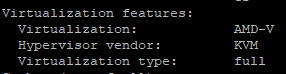
- It is a Dedicated Server: If you cannot find the “Hypervisor vendor” line at all, or if the field is empty, you are likely running on bare metal hardware.
This simple check is often all you need to decide if you have a VPS or Dedicated server.
Method 2: The “systemd-detect-virt” Tool (Fastest Result)
If you want the absolute fastest way to check server type, this is the tool for you. Unlike other commands that show a lot of extra information, systemd-detect-virt is built for one specific purpose: to detect if the system is running in a virtual environment.
It gives you a short, clear answer without forcing you to scroll through long logs.
Here is how to use it:
- Open your terminal.
- Type this short command and press Enter:
systemd-detect-virt
How to read the result:
- It is a Dedicated Server: If the output says
none, it means the tool found no virtualization. You are running on bare metal hardware. - It is a VPS: If the output gives you a name like
kvm,oracle,vmware, orxen, it has detected a virtualization layer. This confirms you are using a VPS or Dedicated server that is actually virtualized.

This is often the most reliable “yes or no” test you can run.
Method 3: Analyze Hardware Clues with “dmidecode”
This method is like looking at the sticker on the back of a physical computer case. The dmidecode command reads the system’s hardware information directly. It is one of the most detailed ways to check server type and see exactly who manufactured the machine.
Here is how to do it:
- Open your terminal.
- Type the following command (you might need
sudofor this one) and press Enter:sudo dmidecode -t system
How to read the result:
Look for the lines that say Manufacturer and Product Name.
- It is a Dedicated Server: You will see real hardware brand names. For example, the Manufacturer might list companies like Dell Inc., HP, Supermicro, or Lenovo. This confirms you are using physical hardware.
- It is a VPS: The Manufacturer or Product Name will list virtualization software. If you see names like QEMU, KVM, VirtualBox, or VMware, then you are definitely on a virtual machine.
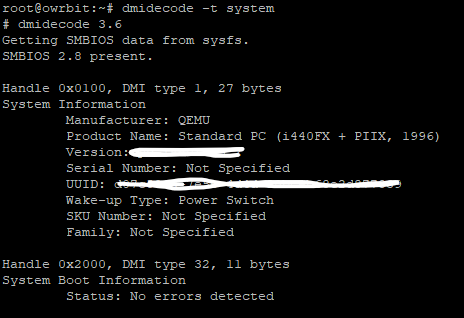
This command is excellent because it helps you distinguish between a true VPS or Dedicated server by revealing the underlying identity of the hardware.
Checkout Rent a Dedicated Server | Affordable Server Hosting From Owrbit
Method 4: Inspect Disk Names with “lsblk”
Sometimes, the names of your hard drives give away the answer immediately. Your operating system assigns specific names to storage devices based on how they are connected. Checking these names is a smart way to check server type.
Here is how to do it:
- Open your terminal.
- Type this command and press Enter:
lsblk
How to read the result:
Look at the column under NAME.
- It is a VPS: You will often see disk names starting with
vda(Virtual Disk) orxvda(Xen Virtual Disk). These names explicitly tell you that the storage is virtualized. - It is a Dedicated Server: You will usually see names like
sda(Standard Disk) ornvme0n1(NVMe SSD). While some virtual environments can mimic these names, seeing them usually points towards a physical VPS or Dedicated server setup where you have direct access to the drive.
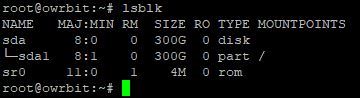
This method is great for double-checking your results from the previous steps.
Bonus Tip: How to Check Server Type on Windows
Not everyone uses Linux command lines. If you manage a Windows Server (often used for RDP or remote desktops), you can still find the answer easily using the visual interface. You do not need to be a technical expert to do this.
Checkout What is Windows VPS Server: All About Windows VPS Hosting
Here is the simple process to check server type on Windows:
- Right-click on your Taskbar at the bottom of the screen.
- Select Task Manager from the menu.
- Click on the Performance tab (it usually looks like a small heart monitor graph).
- Click on CPU on the left side list.
How to read the result:
Look at the bottom right corner of the window.
- It is a VPS: You will often see a line that says “Virtual Machine: Yes” or similar text. This confirms that the system is virtualized.
- It is a Dedicated Server: You will not see the “Virtual Machine” line. Instead, looking at the top right, you will see the exact model of the physical processor without any mention of virtual adapters.
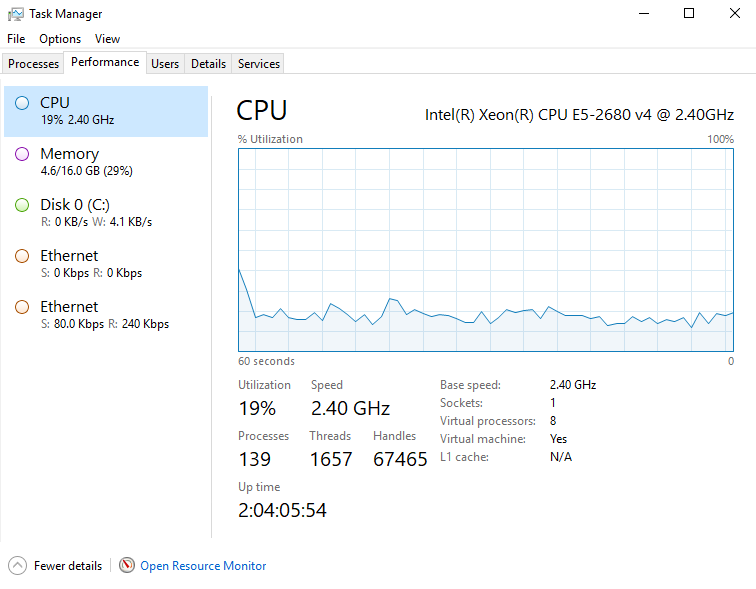
This simple check helps Windows users know if they are working on a VPS or Dedicated server in just a few clicks.
Checkout Bare Metal Server vs Dedicated Server: Best Server For Yourself
Frequently Asked Questions About Server Types
To help you understand even better, we have gathered and answered the most common questions users ask when they want to check server type and verify their hosting hardware.
Can a hosting provider fake a VPS as a Dedicated Server?
Yes, it is possible for unethical providers to sell a large VPS container as a "dedicated server." This is why checking the hardware details is important. Using the command sudo dmidecode -t system will reveal the true manufacturer. If it says "QEMU" or "VirtualBox" instead of a real brand like "Dell" or "HP," it is likely a virtual environment.
Is a Dedicated Server always faster than a VPS?
Not always. A high-end Cloud VPS with modern NVMe storage and fast CPUs can be faster than an old budget dedicated server with SATA drives. However, a dedicated server offers consistent performance because you do not share resources with "noisy neighbors," ensuring stability under heavy loads.
Why does the lscpu command show “Hypervisor vendor” on my server?
If the lscpu command displays a line like Hypervisor vendor: KVM, it confirms your operating system is running inside a virtual machine. On a true dedicated server, this line should either be missing entirely or empty. If you paid for dedicated hosting and see this, contact your provider immediately.
What does it mean if systemd-detect-virt outputs “none”?
If the command systemd-detect-virt returns "none," it means the system could not detect any active virtualization technology. This is the strongest indicator that your operating system is running directly on physical hardware (bare metal), confirming it is a dedicated server.
How can I check if my Windows Server is virtual or physical?
The easiest way is to open Task Manager, click on the Performance tab, and select CPU. Look at the bottom right corner. If you see "Virtual Machine: Yes," it is a VPS. Alternatively, open PowerShell and type Get-ComputerInfo | select OsHypervisorPresent. If it says "True," it is virtualized.
Why does my Dedicated Windows Server say “Hypervisor detected”?
Sometimes, a physical Windows server might show "Hypervisor detected" if you have Core Isolation or Memory Integrity features enabled in Windows Security. These security features use a tiny layer of virtualization to protect the system kernel, even on bare metal hardware.
How do I find the physical hardware brand of my Linux server?
You can find the manufacturer using the command sudo dmidecode -s system-manufacturer. On a dedicated server, this will show real brands like "Dell Inc.," "Supermicro," or "HP." On a VPS, it will often show generic names like "QEMU," "KVM," or "VMware."
What are “noisy neighbors” in VPS hosting?
"Noisy neighbors" are other users on the same physical server as your VPS who consume too many resources (CPU or Disk I/O). This causes your website to slow down even if your own usage is low. Dedicated servers solve this problem by giving you 100% of the hardware resources.
Can I convert a VPS into a Dedicated Server?
No, you cannot "convert" a VPS into a dedicated server because they are different hardware environments. To switch, you must purchase a new dedicated server plan and migrate your data (files, databases, and applications) from the VPS to the new physical machine.
We hope these answers help you confirm if you are using a VPS or Dedicated server, but if you still have doubts, our support team is always ready to assist you further.
Conclusion: Take Control of Your Hosting Infrastructure
Now that you have the tools to identify your server environment, you never have to guess about your hardware again.
Transparency is the most important part of any hosting relationship. Whether you are managing a high-traffic e-commerce store or a simple application, knowing if you have a VPS or Dedicated server ensures you are getting the performance and security you paid for. By using simple commands like lscpu and systemd-detect-virt, you can easily check server type and hold your provider accountable. If you find that your current host is not being honest, or if you simply need a partner who guarantees 100% true hardware specs, it might be time for a change. At Owrbit, we believe in complete transparency, giving you the exact resources you need to grow without limits.
Go ahead and run these commands today so you can build your business on a foundation you trust.
Discover more from Owrbit
Subscribe to get the latest posts sent to your email.