



For nearly 20 years, one thing about Gmail never changed: you could not rename your primary @gmail.com address. If you picked a bad username years ago, made a typo, or outgrew an old handle, your only option was to create a new account and start over. Most guides still say that’s the only way.
That changed in 2026.
Google quietly launched the native Google Account Rename Feature, making it possible to change your Gmail address without creating a new account or losing your data. Your emails, Drive files, Photos, YouTube history, and subscriptions all stay exactly where they are. Only the email name changes.
“The ability to change a Gmail address is the most requested feature in the history of the platform. By allowing renames while maintaining an alias system, Google is finally solving a 20-year-old identity crisis for millions of users.”
— Tech Analyst Insight, 2026
This guide explains, in plain language, how changing a Gmail address actually works in 2026, who can use the new feature, the limits you need to know about, and the exact steps to do it safely. If you’ve ever thought “this should be possible by now,” you’re right — and this is how it finally works.
Can You Really Change Your Gmail Address Now?
Yes — and this is where most people are still confused.
For years, Google did not allow any direct change to a primary @gmail.com address. Every workaround involved creating a second account, forwarding emails, and manually moving data. That limitation is why many well-known sites still say it can’t be done.
In early 2026, Google changed this.
With the Google Account Rename Feature, eligible personal Gmail users can now natively change their Gmail address inside their existing Google account. There is no need to create a new account, no data migration, and no temporary forwarding setup.
Your account stays the same. Your email history, Google Drive files, Photos, YouTube subscriptions, app logins, and settings remain untouched. The only thing that changes is the email address name attached to the account.
This is not a workaround or an alias trick. It is an official account-level rename, rolled out by Google, and it finally solves a problem users have had since Gmail launched.
Step-by-Step: How to Use the Google Account Rename Feature
Follow these steps to change your Gmail address using Google’s native rename feature. If the option is available on your account, the process takes only a few minutes.
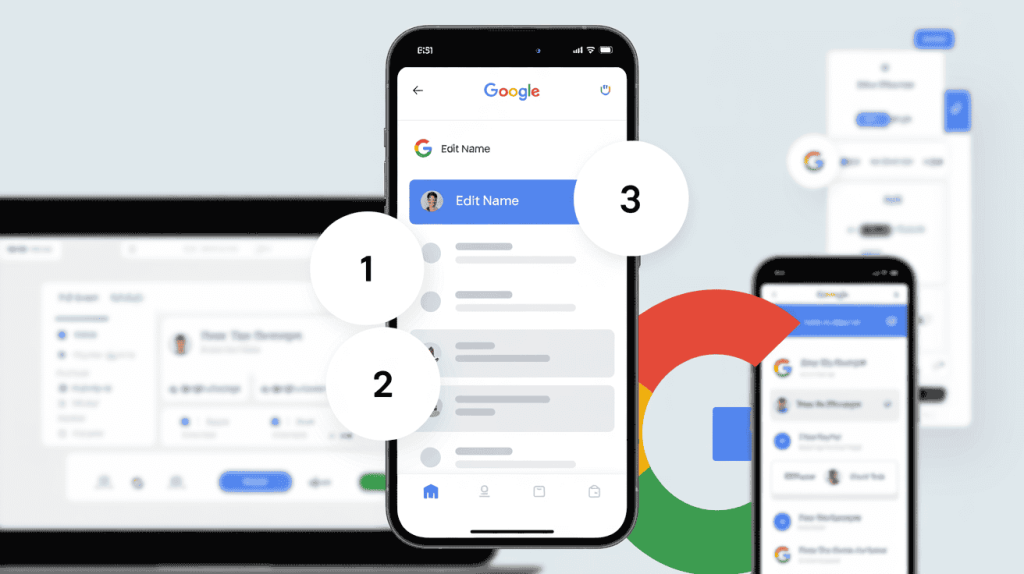
- Sign in to your Google Account
- Go to myaccount.google.com and log in using your current Gmail address.
- Open Personal Info
- From the left-hand menu, click on Personal Info to access your account details.
- Navigate to Email settings
- Scroll down to the Contact info section and select Email.
- Edit your Google Account email
- Click on Google Account email. If the rename feature is enabled for your account, you will see a pencil (edit) icon next to your Gmail address.
- Verify your identity
- Enter your account password and complete any two-step verification prompts to continue.
- Choose your new Gmail address
- Type in your desired new username. Google will check availability in real time.
- Confirm the change
- Save your new address. The update is applied instantly across Gmail and all connected Google services.
Once completed, your old Gmail address automatically becomes an alias, and your account continues to function exactly as before — with no data loss and no service interruptions.
The “Fine Print”: 3 Rules You Must Know Before Changing Gmail
Changing a Gmail address is now possible, but it is not something you should rush. Google added clear limits to prevent abuse and to protect account stability. Before you proceed, you should fully understand these rules.
You Are Locked for 12 Months After Each Change :
After you rename your Gmail address, Google places a mandatory 365-day lock on your account. During this period, the rename option is completely disabled. There is no manual override, no support exception, and no way to undo the change once it is saved.
“The 12-month lock is a necessary security measure. It prevents ‘identity cycling’ and ensures that the Google Account Rename Feature is used for genuine identity updates rather than temporary masking.”
— Security Guidelines for Google Account Updates
This means even small mistakes — spelling, formatting, or choosing a name you later regret — cannot be corrected until the full year has passed. Before confirming your new address, double-check the spelling, think about long-term use, and consider how it will look in professional and personal contexts.
Google added this lock to prevent abuse and constant renaming, so treat a Gmail rename as a serious, long-term decision rather than a quick experiment.
Your Old Gmail Address Does Not Disappear :
When you change your Gmail address, Google does not delete or deactivate your old one. Instead, it automatically becomes a permanent alias linked to your account.
This means emails sent to your old address will continue to arrive in the same inbox, without any forwarding rules or extra setup. You also retain the ability to sign in using the old address, which helps avoid login issues with older apps or saved credentials.
From the outside, nothing breaks. Contacts who still use your old email will reach you normally, while you can start sharing and using your new address immediately. The transition is seamless, and there is no risk of losing messages or access.
There Is a Strict Lifetime Cap on Renames :
Google places a permanent limit on how many times a Gmail address can be renamed. Each account is allowed a maximum of three renames over its entire lifetime. Including your original address, that gives you up to four total Gmail addresses tied to the same account.
Once you reach this limit, the rename option is permanently disabled. It does not reset after time, and there is no way to request additional changes through support.
Because of this, each rename should be planned carefully. Use the feature for meaningful, long-term changes — such as correcting an old username or aligning with a professional identity — rather than minor adjustments.
Real-World Example: From an Outdated Gmail to a Professional Identity
For years, one user was stuck with skater_boy_2008@gmail.com, an address created as a teenager that no longer matched their professional life. Like many people, they assumed changing it would require creating a new account and losing years of history.

In early 2026, they used the Google Account Rename Feature to switch to firstname.lastname@gmail.com directly inside their existing account. The entire process took only a few minutes and required no migration or forwarding setup.
Stop Hiding Behind @gmail.com
Ready to take your professional identity to the next level? While renaming your Gmail is great, a custom business email likename@yourcompany.combuilds instant trust. Get premium, secure email hosting at starting at just a few dollars a month. Get My Professional Email Now
The result was immediate and seamless. All 15 years of emails, Google Photos, Drive files, YouTube subscriptions, and watch history stayed fully intact. To everyone else, it looked like a clean upgrade — not a reset.
Frequently Asked Questions (FAQs)
Below are the most commonly searched questions about changing a Gmail address in 2026. These answers are written clearly and accurately to help you understand what’s possible, what’s limited, and how the new rename feature actually works.
Is this an official Google feature or a workaround?
It is an official Google feature. This is not an alias trick, forwarding setup, or third-party workaround. The rename happens at the account level and is supported directly by Google.
Will I lose my emails, Drive files, or Photos if I change my Gmail address?
No. All your data stays exactly the same. Emails, Google Drive files, Google Photos, YouTube history, subscriptions, and app access remain untouched. Only the email address name changes.
What happens to my old Gmail address after I change it?
Your old Gmail address becomes a permanent alias. Emails sent to the old address will still arrive in your inbox, and you can continue using it to sign in if needed.
Can people still email my old Gmail address?
Yes. Anyone emailing your old address will reach you normally. There is no interruption in mail delivery and no need to set up forwarding.
How many times can I change my Gmail address?
You can rename your Gmail address up to three times per account. Including your original address, that gives you a total of four Gmail addresses for the lifetime of the account.
Is there a waiting period between Gmail address changes?
Yes. After each rename, you are locked for 12 months (365 days). You cannot change your address again until the full waiting period has passed.
Can Google support reset the 12-month lock or lifetime limit?
No. These limits are enforced automatically and cannot be overridden by support. Once applied, they are final.
Does this work for Google Workspace or business email accounts?
No. The Google Account Rename Feature is for personal @gmail.com accounts only. Google Workspace and custom domain email users cannot use this feature.
Why don’t I see the edit option on my account yet?
The feature is being rolled out gradually. If you do not see the pencil (edit) icon next to your Google Account email, it means the feature is not yet enabled for your account.
Can I change only the username part and keep @gmail.com?
Yes. The domain remains @gmail.com. You are changing only the username portion of the address.
Does Owrbit recommend using this feature?
Yes — with planning. At Owrbit, we recommend using the Gmail rename feature only for long-term identity changes, since the limits are strict and permanent. Choose carefully, verify spelling, and think ahead before confirming.
Is changing a Gmail address a good idea for professional use?
Yes, especially if your current address looks outdated or unprofessional. Many users use the rename feature to move to a clean, name-based Gmail address without losing history.
Should I notify my contacts after changing my Gmail address?
It is recommended. While emails to your old address still work, sharing your new address helps you fully transition and present a consistent identity going forward.
Is it safe to change my Gmail address?
Yes. When used carefully, the process is safe and reversible only through aliases. Google designed the feature to avoid data loss and service disruption.
Will my logins break on websites and apps?
No. Your Google account itself does not change. Existing logins, OAuth connections, and saved sessions continue to work because the old address remains a valid alias.
If your question wasn’t covered above, it’s likely because the answer hasn’t changed — or the feature hasn’t reached all accounts yet. As Google continues its rollout, this guide will remain updated to reflect what actually works, not outdated assumptions.
Summary Checklist: Is Your Account Ready to Change Your Gmail Address?
Before you use the Google Account Rename Feature, take a moment to confirm these basics. This quick checklist helps you avoid mistakes and ensures your attempt to change your Gmail address goes smoothly the first time.
- Check for the edit icon
- Log in to myaccount.google.com and navigate to Personal Info → Email. If you see the pencil icon next to your Gmail address, the Google Account Rename Feature is available for your account and you can proceed to change your Gmail address natively.
- Choose a permanent, long-term name
- Because the Google Account Rename Feature has a 12-month lock and a lifetime limit, your new address should be something you can live with long-term. When you change your Gmail address, think professional, future-proof, and easy to share.
- Update your recovery phone number
- Before you change your Gmail address, make sure your recovery phone number is current. Google may require verification during the Google Account Rename Feature process, and outdated recovery info can slow things down.
- Review two-step verification settings
- Confirm that your 2FA methods are active and accessible. A smooth verification step is essential when you change your Gmail address using the Google Account Rename Feature.
- Double-check spelling and availability
- Once you confirm the rename, it cannot be undone. Carefully review spelling before finalizing your decision to change your Gmail address, since the Google Account Rename Feature applies instantly.
If every item above checks out, your account is ready. You can now change your Gmail address with confidence, knowing the Google Account Rename Feature will update your identity without disrupting your data or services.
🚀 Ready to Outgrow Gmail Entirely?
Changing your Gmail address is a great start, but if you want to be taken seriously by clients and employers, you need a custom domain email.
At Owrbit, we provide high-performance, secure email hosting that gives you the professional edge you deserve.
- Custom Domain:
you@yourname.com- Ad-Free Inbox: Focus on what matters.
- 24/7 Support: We help you migrate seamlessly.
Discover more from Owrbit
Subscribe to get the latest posts sent to your email.